


Vidoza AI Video Maker
0.00.00 Reviews
App Specs
- Version
- 1.0.1
- Updated On
- License
- Free
- Downloads
- 10,000+
- Developer
- IT Hub Info
- Categories
- Art & Design
- Platform
- Android
Screenshots
 Analysis by AppCompare
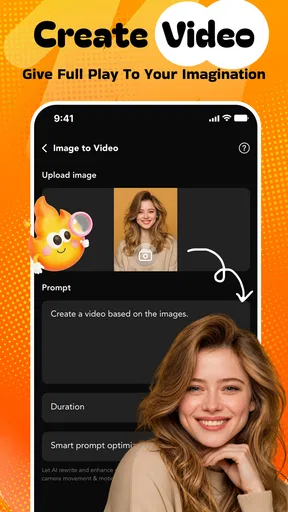
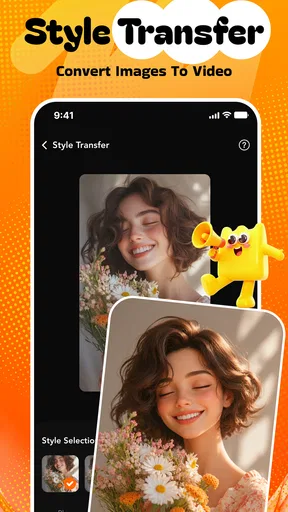
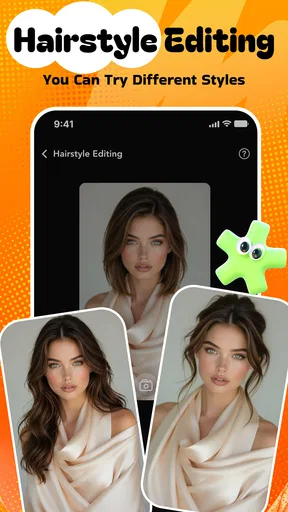
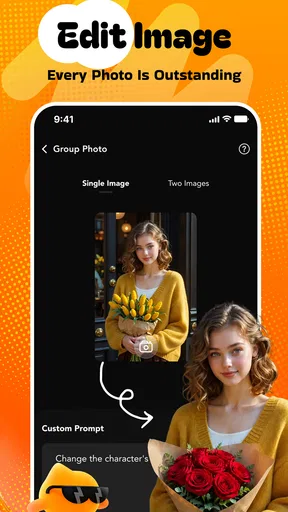
When I tried Vidoza AI Video Maker, I approached it as a quick creative tool rather than a full video editor. Its main appeal is simple: I could start with an ordinary photo and turn it into a short, stylized moving image with cinematic effects without building a timeline from scratch. That makes it interesting for people who want something more expressive than a still picture but do not want to learn a complicated editing workflow.
The app sits in the art and design category, and that placement makes sense. I found myself thinking of it less as a camera replacement and more as a small visual workshop for social posts, greetings, mood boards, personal memories, and experimental images. The developer is IT Hub Info, and the app is free to install, although optional purchases range from $1.99 to $99.99 per item. That difference matters because the free starting point is approachable, while regular creative use may eventually involve spending.
How Vidoza AI Video Maker works in a shared household
A realistic use case is a shared tablet or family phone. One person may want to animate a holiday photo, another may be preparing a visual for a school project, and someone else may simply be curious about turning a portrait into a dramatic clip. The app is well suited to this kind of occasional, turn-by-turn experimentation because the basic idea is easy to understand: choose an image, apply motion or a visual treatment, and review the result.
I would still treat the device as a shared creative workspace, not as a private scrapbook. Photos can carry personal meaning, and a household device often contains images belonging to several people. Before handing the phone to a child, a guest, or another family member, I would select the source image myself and avoid leaving unrelated photos open in the picker. That is not a special feature of this app; it is simply sensible housekeeping when an image-based tool is used by more than one person.
The strongest household scenario is collaborative rather than competitive. An adult can choose an appropriate picture, a teenager can suggest the visual mood, and another family member can decide whether the result feels natural or overly dramatic. This makes the app a pleasant conversation starter. It also exposes one of its practical limits: the creative result is subjective, so two people may want completely different movement from the same photograph.
I found that the best source images are usually clear, well-composed pictures with an obvious subject. A face, a pet, a landscape with strong depth, or an object against a simple background gives the effect something understandable to work with. Busy group photos are less predictable because several faces and overlapping shapes compete for attention. That is one of the more useful lessons that is easy to miss when first seeing the app’s short store description.
What the first session feels like
The first session is more inviting than opening a traditional editor with multiple tracks, trimming tools, transitions, and export panels. I could focus on the visual idea instead of learning a production system. For a casual user, that reduction in friction is the real value. Someone who only wants a moving birthday image or a cinematic variation of a travel photo may not need the control offered by a professional editor.
Worth Reading Before You Choose

Flipboard Shows What News Apps Must Do Beyond the Feed

Switching to Android Auto Means Rethinking Your Driving Routine

Google Calendar Makes a Crowded Week Easier to Manage

Ludo King Makes the Most of the Minutes Between Plans

Baby Panda World Brings Quick Play to Modern Phones, but Its Game Library Feels Busy

ESPN’s Live Game View Makes Following Close Games Easier
At the same time, the simplicity means I would not choose it for a project that depends on precise timing, detailed sound design, or frame-by-frame corrections. The app is strongest when the desired result is a quick visual transformation. If the goal is a carefully edited story with several shots, captions, music cues, and exact cuts, a conventional mobile editor remains the better tool.
Setting boundaries before anyone else uses it
Because the app is rated Mature 17+, I would not treat it as an automatic child-friendly activity. That age context should guide how it is introduced on a shared device. An adult should decide whether the app is appropriate for the people using the phone and should supervise younger users rather than assuming that a creative label means every possible output is suitable for every age.
This is especially important when the source material includes portraits. A child may see the process as a harmless animation experiment, while an adult may be more aware of privacy, embarrassment, or the consequences of transforming someone’s image. I would establish a simple household rule: use your own photos or images that you have permission to edit, and ask before turning another person’s face into a shareable video.
The same boundary applies to purchases. Since the app is free but includes in-app items priced from $1.99 to $99.99, I would keep payment decisions with the account owner. A shared phone can make a creative experiment feel spontaneous, but a purchase is not the same as tapping through another effect. Before anyone explores paid options, the household should agree on who can approve them and whether the result is worth the cost.
I also recommend separating experimentation from publishing. A family member may enjoy a strange or exaggerated effect privately, but that does not mean the image should immediately be posted or sent to a group chat. I would review the finished clip with the person shown in it, especially when the subject is a child, an older relative, or anyone who may not understand how widely a video could travel.
Coordinating creative work without overcomplicating it
Vidoza AI works best when one person handles the image selection and another provides the creative direction. That division avoids a common shared-device problem: several people changing settings at once and losing track of which version they liked. I would keep a small verbal plan before starting: identify the subject, decide whether the mood should be subtle or dramatic, and agree on who has the final say.
For a household project, I would begin with one original image and make only a few variations. Trying every available treatment can turn a five-minute idea into a long session with no clear favorite. Comparing a restrained motion effect with a more intense cinematic look is more useful than producing a large pile of nearly identical clips. This approach also makes it easier to decide whether any optional purchase adds something meaningful.
Another practical tip is to keep the original photo untouched. I would duplicate or otherwise preserve the source before experimenting, particularly with family memories or irreplaceable pictures. The transformed video should be considered a new creative version, not a replacement for the original. This workflow is useful because it keeps the app’s experimentation separate from the household’s photo archive.
Coordination becomes even more important when the device belongs to several people. I would avoid leaving a half-finished project open if another person needs the phone, and I would review the output before sharing it from a shared account or shared gallery. The app may be quick, but the social consequences of a careless share are not. A short check for faces, private backgrounds, and unintended recipients is worth the extra moment.
Where it fits beside ordinary editing apps
Compared with a standard mobile video editor, Vidoza AI feels more immediate and image-led. Traditional editors give me control over clips, timing, layers, and sequencing, but they also ask me to make more decisions. This app is appealing when I already have one strong photo and want the software to provide the movement and atmosphere.
Compared with a slideshow maker, it offers a more cinematic starting point. A slideshow mainly connects still images, while the attraction here is the transformation of an individual image into something that feels more alive. That distinction makes it useful for a single memorable picture, a profile-style visual, or a short message where a static attachment feels too plain.
There is a trade-off, though. The more assistance the app gives me, the less exact control I have over every visual decision. If I need consistent motion across a large collection, precise branding, or a repeatable template for work, I would rather use a tool designed around manual control and project management. Vidoza AI is better for creative impulse than for a strict production pipeline.
I would also avoid comparing it directly with a full desktop editor. They solve different problems. A desktop workflow is more suitable for long-form projects, detailed audio, and deliberate revision. This app earns its place on a phone by making a small visual idea feel achievable during a spare moment, not by replacing professional editing software.
Everyday uses that make sense
One use I enjoyed is creating a more atmospheric version of a travel photo. A quiet street, a building at sunset, or a landscape can benefit from subtle movement because the result feels less like a simple gallery image. I would keep the effect restrained when the location itself is the subject; excessive motion can distract from the details that made the photo worth using.
Another good use is a personal greeting. Instead of sending only a still birthday picture or a family memory, I could turn one carefully chosen image into a short visual message. The important part is choosing a photo that the recipient will appreciate, rather than relying on an effect to rescue a weak or unsuitable image.
For creative learning, the app can help a beginner understand how motion changes the emotional tone of a picture. The same portrait can feel calm, dramatic, playful, or mysterious depending on the treatment. That makes it useful for experimenting with visual storytelling, even if the user never intends to publish the results.
I would be more cautious with schoolwork or professional presentations. The app may help generate an idea or a background visual, but I would not assume that an automatically created effect will match a teacher’s brief, a brand guide, or an accessibility requirement. For those situations, the output should be checked carefully and possibly refined elsewhere.
Quality, control, and the limits I noticed
The central limitation is that an attractive source photo does not guarantee an equally convincing moving result. Images with clear subjects give the process a better chance of looking intentional, while cluttered scenes can appear busy or awkward. I would test a small copy first, especially when the image contains several people, reflective surfaces, fine patterns, or important text.
Text inside an image is another reason to review the result closely. A cinematic treatment can make decorative lettering harder to read, and motion may draw attention away from the message. If the purpose is an announcement or invitation, readability should take priority over visual drama. In that situation, a conventional design app may be more dependable.
I also see a workflow trade-off between speed and revision. The app helps me reach a first result quickly, but users who like to adjust every stage may feel restricted. There is a difference between being able to create a pleasing effect and being able to explain exactly why each part of the animation behaves as it does. Vidoza AI favors the first experience.
Storage and sharing habits deserve attention as well. Short videos are still larger and more cumbersome than individual photos, particularly when several household members create variations. I would keep only the versions that have a clear purpose and remove abandoned experiments from the device. This is a small discipline, but it prevents a shared gallery from becoming difficult to navigate.
Age, trust, and responsible image use
The Mature 17+ rating changes how I would recommend the app. I would feel comfortable suggesting it to an adult who wants a fast visual experiment, but I would not present it to younger users as an unsupervised toy. The issue is not only the effect itself. It is also the combination of personal photos, shared devices, optional spending, and the possibility of creating something about another person without their approval.
Trust is easier to maintain when everyone knows the household rules. I would explain that a photo should not be edited or shared simply because it is available on the device. Permission matters, and the person pictured should have a chance to see the result before it leaves the household. This is particularly important for embarrassing expressions, private locations, uniforms, documents, or images that reveal more background detail than intended.
I would also make the account owner responsible for reviewing any paid decision. The presence of purchases from $1.99 to $99.99 per item means the free installation should not be confused with unlimited free access to every possible option. A shared-device workflow needs a clear pause before payment, not because the app is unsuitable, but because creative curiosity can lead to impulsive taps.
People who need strong privacy controls, formal team permissions, or detailed family management may find this app too lightweight for their situation. I would choose it for personal or household creativity, while using a more structured service when several collaborators need defined roles, organized assets, and predictable approval steps.
Device expectations and who should skip it
The app supports Android 7.0 and newer, which gives it a broad place on compatible Android phones and tablets. Still, compatibility alone does not tell me how comfortable a particular device will feel during image processing. On a shared or older phone, I would close unrelated apps, keep some free storage available, and avoid starting a large creative session when the device is already struggling.
I would recommend it to adults who want to animate selected photos quickly, beginners who dislike complex timelines, and households that enjoy creating visual messages together under sensible supervision. It is also a reasonable choice for someone who wants to explore AI-assisted art without committing immediately to a paid editor, since the app itself is free to start.
I would skip it if my priority were exact editing control, advanced project organization, dependable text layout, or a polished multi-scene production. I would also skip it for a child who needs an independently managed creative environment, because the Mature 17+ rating and optional purchases call for adult involvement. In both cases, a conventional editor or a more tightly managed creative platform would be a better match.
My household verdict after using it
Vidoza AI Video Maker is a focused tool with a clear strength: it turns the gap between a still photo and a small cinematic video into a much shorter, friendlier process. I like it most when I have one image, one mood, and a limited amount of time. The result can feel more personal than a standard slideshow without demanding the patience of a full editing suite.
Its compromises are just as clear. The app does not replace careful image selection, human review, or responsible sharing. Automatic visual treatment can be less suitable for crowded photos, important text, or projects that demand precise consistency. The free entry point is useful, but the in-app purchase range means households should agree on spending before exploring everything available.
For shared use, my recommendation is simple: let an adult manage the device context, choose appropriate images, keep the original files safe, and review every finished clip before sharing. With those boundaries, the app can be a fun collaborative art activity rather than a source of accidental oversharing or unexpected purchases.
The current version is 1.0.1, and the app has passed around ten thousand installs, so it presents itself as a relatively focused option rather than a familiar all-purpose editing standard. That is not a weakness by itself. I would choose it when speed and visual experimentation matter more than deep control, and I would recommend looking elsewhere when privacy management, detailed editing, or formal collaboration is the main requirement.
My final take: this is a worthwhile free starting point for adults who want to give selected photos motion and atmosphere, especially in a household where creative sessions are shared thoughtfully. It is not the right choice for unsupervised younger users or demanding production work, but for quick, personal visual experiments, it offers a genuinely approachable way to make a still image feel more alive.
Pros
- AI tools speed up video creation for social media.
- Simple interface makes editing approachable for beginners.
- Supports quick creation of short-form promotional content.
- Useful templates can help maintain a consistent visual style.
- Convenient for generating videos directly on a mobile device.
Cons
- AI results may require several revisions to look natural.
- Advanced editors may find the customization options limited.
- Some features or exports may require a paid subscription.
- Video generation can consume significant battery and data.
- Output quality may vary depending on the prompt or source media.
FAQs for Vidoza AI Video Maker
What is Vidoza AI Video Maker and what can I use it for?
Vidoza AI Video Maker is designed to help users create short videos with the assistance of artificial intelligence. It can be useful for producing social media clips, promotional content, visual stories, and entertaining videos without requiring advanced editing experience. Before downloading, remember that the exact tools may depend on the current version, your device, and whether certain AI features require an account or paid access.
How does the AI video creation process work in Vidoza?
The app generally guides you through selecting a template, entering an idea or script, adding images or video clips, and choosing a visual style, soundtrack, or other effects. The AI then helps assemble these elements into a finished video that you can preview and adjust. Results can vary depending on the quality of your prompt and media, so some manual editing may still be necessary.
Is Vidoza AI Video Maker free to download and use?
Vidoza AI Video Maker may be available as a free download, but users should carefully check the app store listing for subscriptions, in-app purchases, usage limits, premium templates, export restrictions, or watermarks. AI generation can sometimes consume credits or require a paid plan. Review the pricing details and trial conditions before confirming a subscription, especially if you only need the app for occasional projects.
Can I export videos without a watermark and share them on social media?
The app may allow finished videos to be saved to your device or shared directly through platforms such as Instagram, TikTok, YouTube, or messaging apps. However, export resolution, duration, file format, and watermark removal can depend on the selected plan or feature set. It is best to test the available export options before creating a large project if professional-looking or commercial content is your goal.
What permissions and device requirements should I consider before installing it?
Vidoza AI Video Maker may request access to photos, videos, the camera, microphone, notifications, and internet connectivity so it can import media, record content, add voiceovers, and process AI features. Only grant permissions that match how you intend to use the app. Also check that your phone has sufficient storage, a compatible operating system, and a stable connection for uploading media or generating videos online.


